Running a Flet app (Hot Reload)
Flet apps can be executed as either desktop or web applications using the flet run command.
Doing so will start the app in a native OS window or a web browser, respectively, with hot reload enabled to view changes in real-time.
Desktop app#
To run Flet app as a desktop app, use the following command:
When you run the command without any arguments, main.py script in the current directory will be executed, by default.
If you need to provide a different path, use the following command:
Where [script] is a relative (ex: counter.py) or absolute (ex: /Users/john/projects/flet-app/main.py) path to the Python script you want to run.
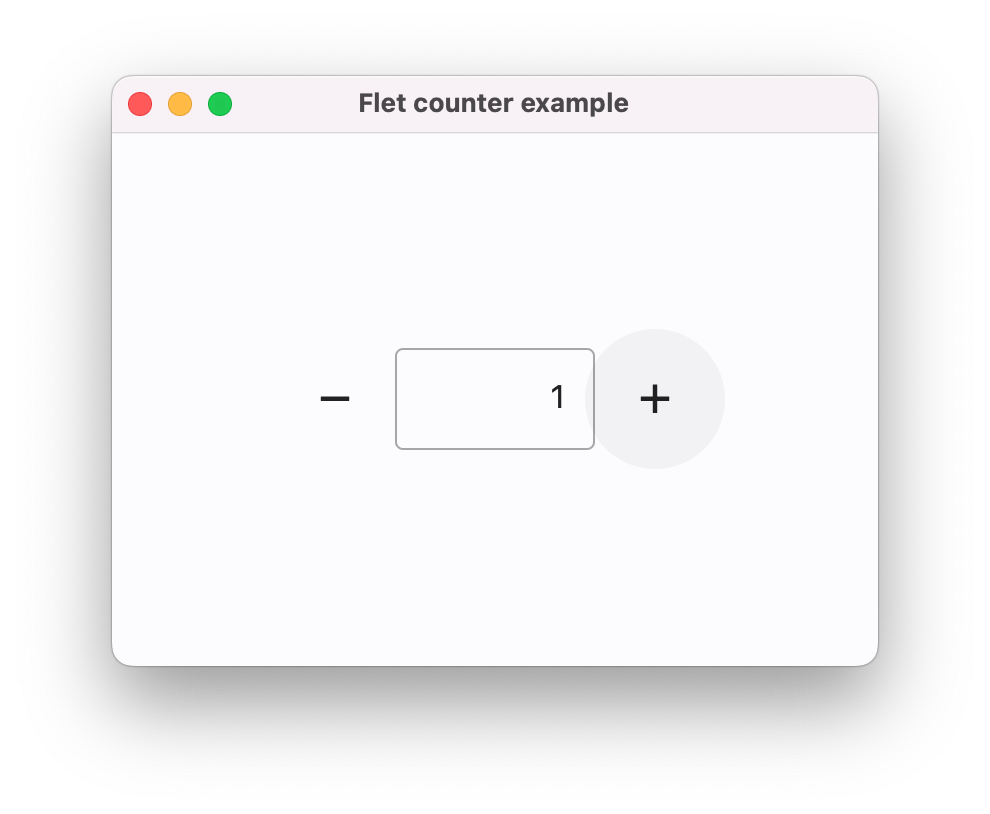
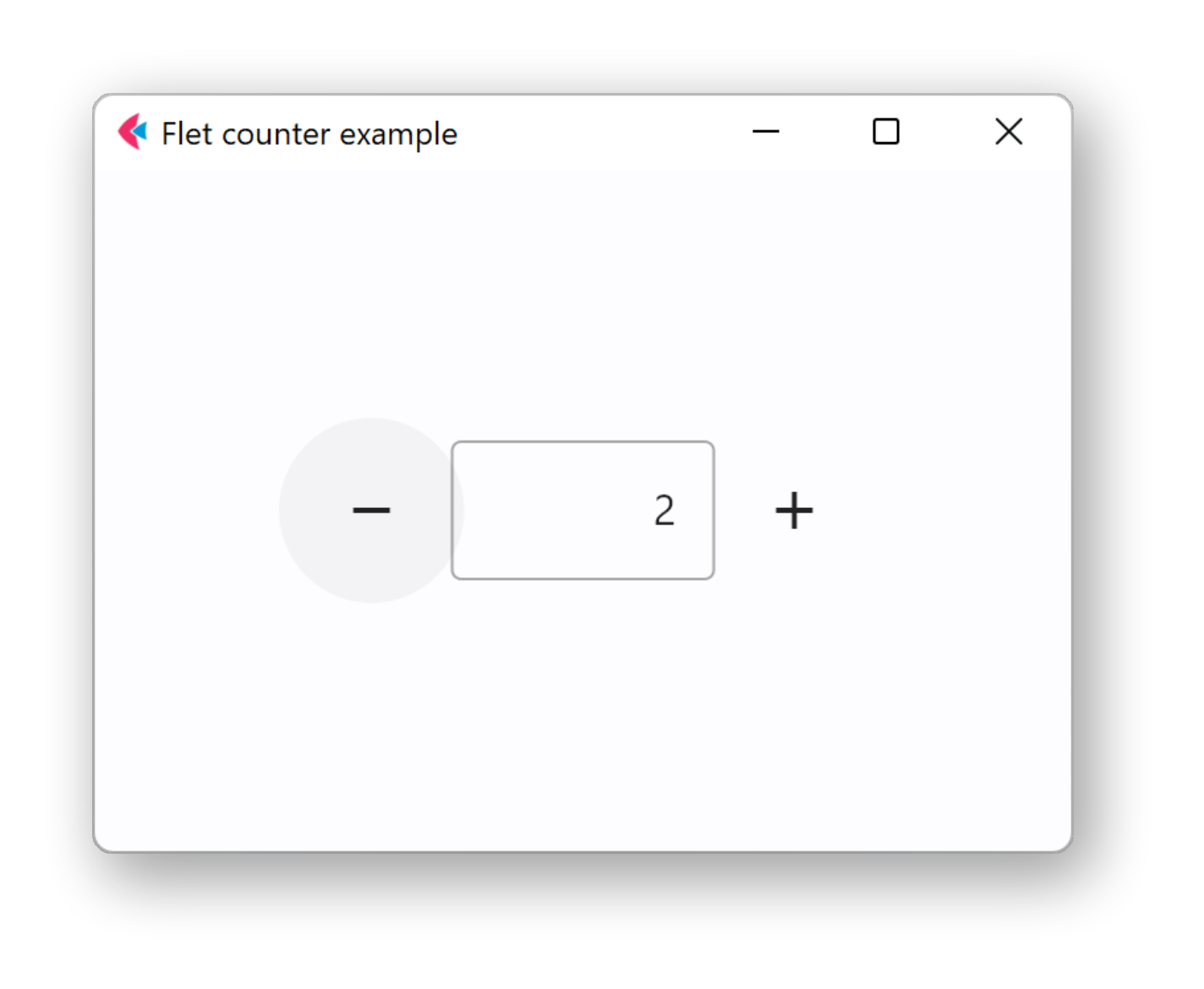
The app will be started in a native OS window:
-
macOS
-
Windows
Web app#
To run Flet app as a web app, use the --web (or -w) option:
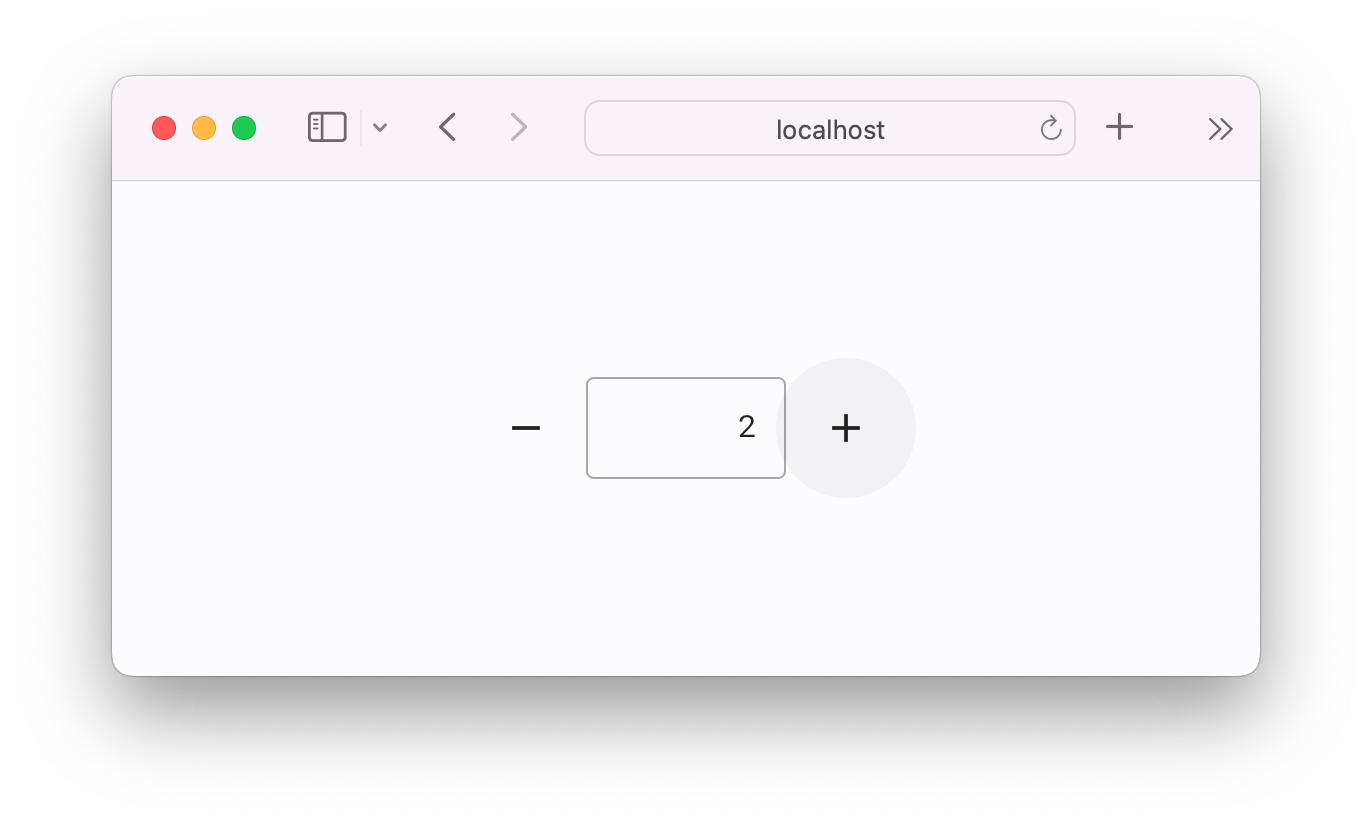
A new browser window/tab will be opened and the app will be using a random TCP port:
Web app
Watching for changes#
By default, Flet will watch the script file that was run and reload the app whenever the contents of this file are modified+saved, but will not watch for changes in other files.
To modify this behavior, you can use one or more of these flet run options:
-dor--directoryto watch for changes in the[script]s directory only-ror--recursiveto watch for changes in the[script]s directory and all sub-directories recursively